Caido is a proxy for inspecting and replaying HTTP traffic. Kiro CLI can call external tools through the Model Context Protocol (MCP). Connect the two and you can ask Kiro to read your proxy history, explain requests, and help you reason about what you captured, without copying traffic into a chat window.
This guide sets up that connection on Linux in ten steps and ends with a read-only test.
How it fits together
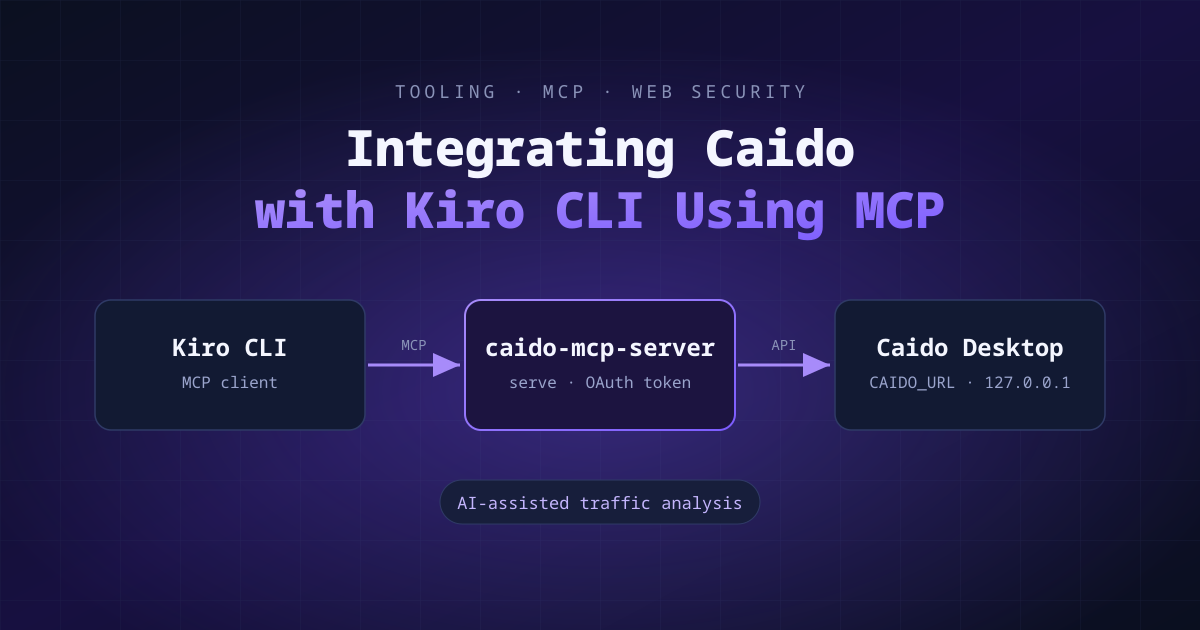
Kiro CLI starts caido-mcp-server serve as an MCP server. That process uses the OAuth token you create in step 4 to call the Caido instance at CAIDO_URL. Kiro then lists whatever tools the server exposes.
Requirements
| Requirement | Notes |
|---|---|
| Linux | Arch Linux here; other distributions work the same way |
| Caido Desktop | Installed and running before you log in |
| Kiro CLI | Installed and authenticated |
| Go | Used to install the MCP server |
Step 1 — Verify Go
go versionExpected output:
go version go1.27.3-X:nodwarf5 linux/amd64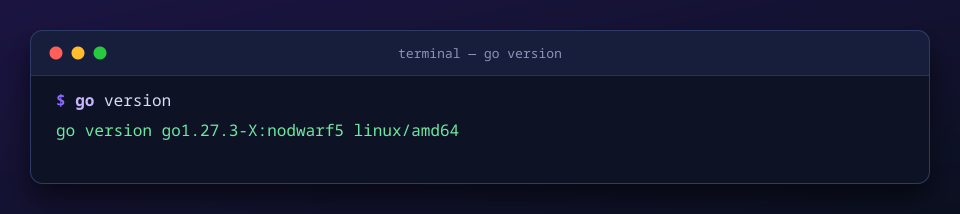
Step 2 — Install the Caido MCP server
go install github.com/c0tton-fluff/caido-mcp-server/v4/cmd/caido-mcp-server@latestCheck that the binary is on your path:
which caido-mcp-serverExpected output (your Go bin directory may differ):
~/go/bin/caido-mcp-server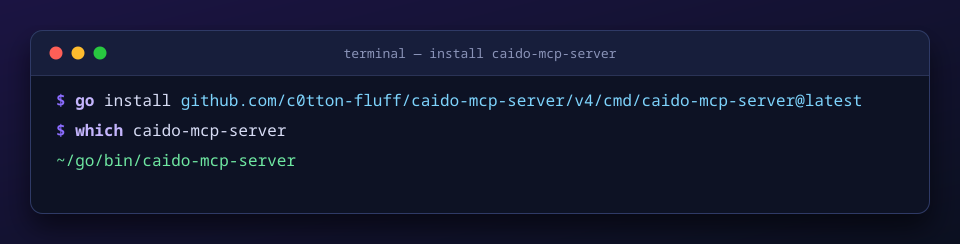
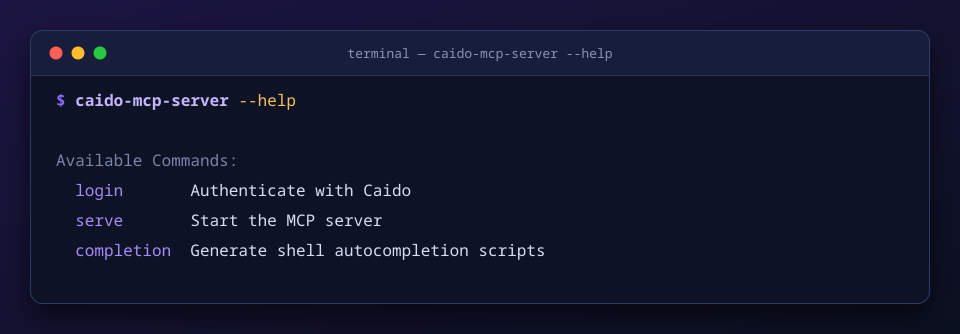
Step 3 — Check the available commands
caido-mcp-server --helploginauthenticates with Caido.servestarts the MCP server.completiongenerates shell autocompletion scripts.
Step 4 — Authenticate with Caido
Start Caido Desktop, then run:
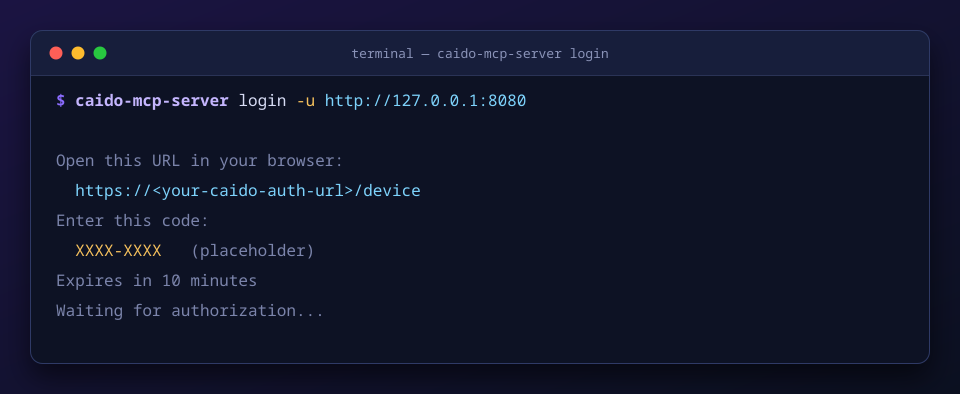
caido-mcp-server login -u http://127.0.0.1:8080The server starts an OAuth device flow and prints an authentication URL, a temporary user code, and an expiry time. Open the URL in your browser, enter the code, and approve the connection.
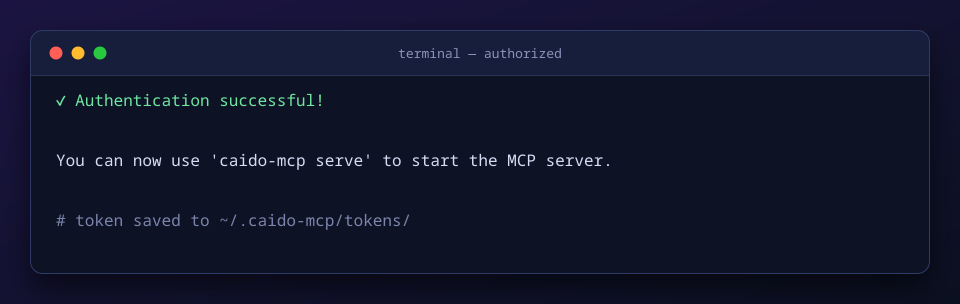
When you approve, the terminal shows:
Authentication successful!

You can now use 'caido-mcp serve' to start the MCP server.
The token is stored under ~/.caido-mcp/tokens/.
Step 5 — Check Kiro’s MCP support
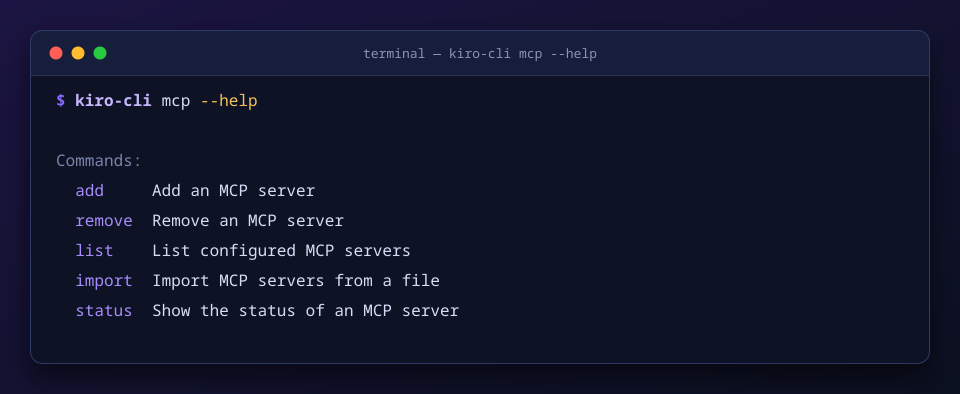
kiro-cli mcp --helpThe commands are add, remove, list, import, and status. You will use add to register Caido.
Step 6 — Look at the Kiro settings directory
ls -la ~/.kiro/settings/This shows what is already configured before you add a server.
Step 7 — Add Caido to Kiro CLI
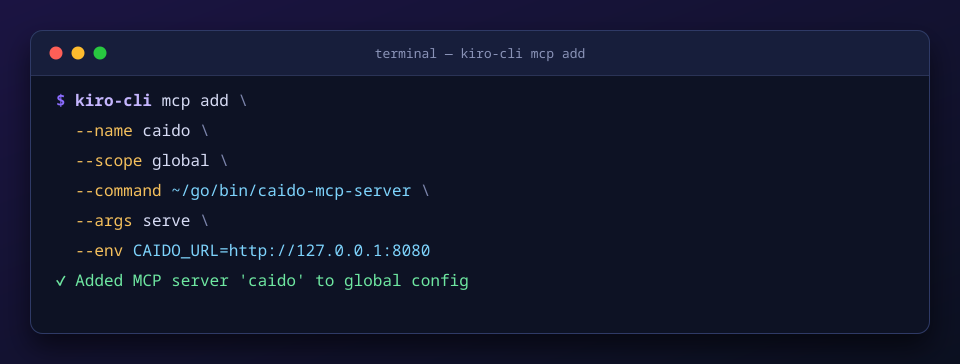
Register Caido as a global MCP server:
kiro-cli mcp add \
  --name caido \
  --scope global \
  --command ~/go/bin/caido-mcp-server \
  --args serve \
--env CAIDO_URL=http://127.0.0.1:8080| Parameter | Description |
|---|---|
--name caido |
Name of the MCP server |
--scope global |
Makes it available in every project |
--command |
Path to the server executable |
--args serve |
Starts the server |
--env |
Sets the Caido instance URL |
Expected output:
✓ Added MCP server 'caido' to global configThe configuration is stored in ~/.kiro/settings/mcp.json.
Step 8 — Verify the configuration
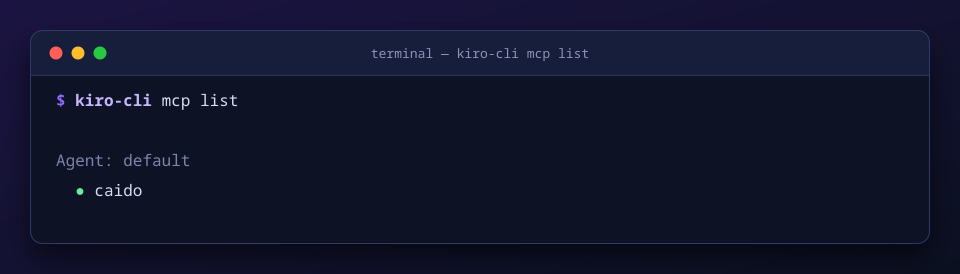
kiro-cli mcp list
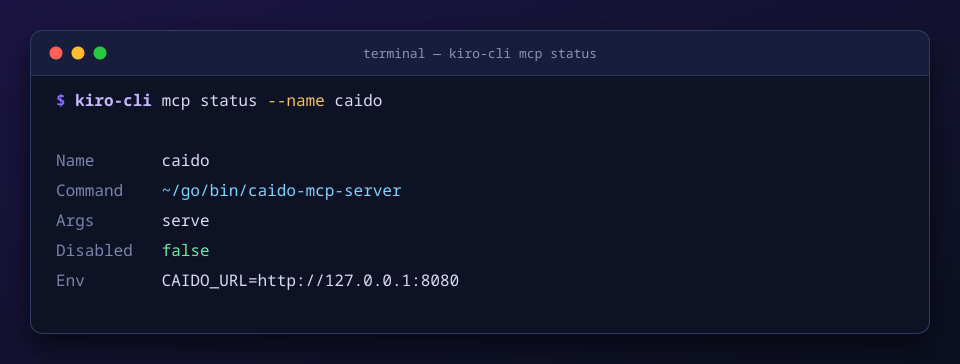
kiro-cli mcp status --name caido
list should show caido under the default Kiro agent. In the status output, check that:
- the server name is
caido - the command points to your
caido-mcp-serverbinary Disabledisfalse- the environment contains
CAIDO_URL=http://127.0.0.1:8080
Step 9 — Confirm the connection inside Kiro CLI
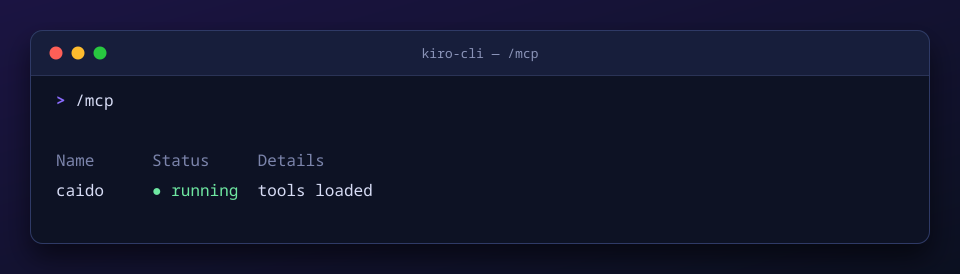
Start Kiro CLI and open the MCP view:
kiro-cli/mcpcaido should show as running, with the number of tools it exposes in the Details column. That number depends on the server version, so don’t expect a specific count.
Step 10 — Test the tools
Ask Kiro what the server offers:
List all available Caido tools and explain what each one does.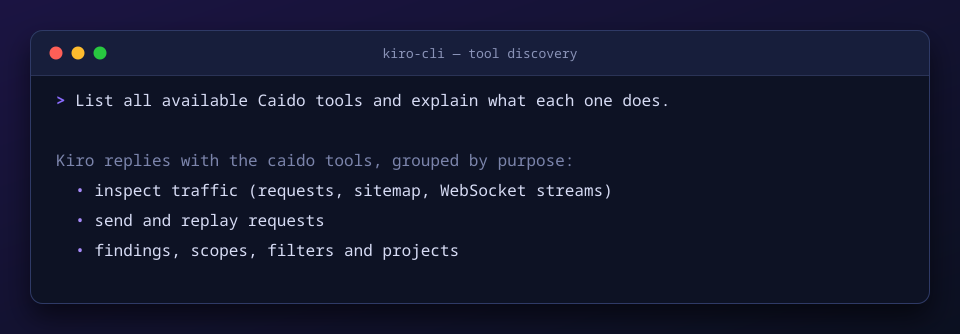
Then run a read-only test against your proxy history:
Show me the latest 10 HTTP requests from my Caido proxy history.
Do not modify or replay anything.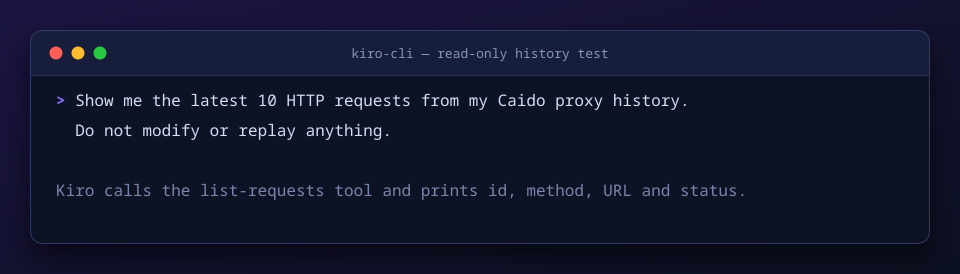
If both prompts work, the integration is done.
Troubleshooting
caido-mcp-server: command not found. Add your Go bin directory (~/go/binby default) toPATH, or pass the full path to--command.- Login fails or times out. Check that Caido Desktop is running and that the
-uURL matches the address Caido listens on. Runloginagain to get a fresh code. caidois not running in/mcp. Runkiro-cli mcp status --name caidoand confirmDisabledisfalseandCAIDO_URLis correct. Restart Kiro CLI after changing the configuration.
Security notes
- Never share the OAuth device code or the files in
~/.caido-mcp/tokens/. - Captured traffic often contains cookies, authorization headers, and personal data. Redact them before you paste anything into a report or post.
- Read what Kiro plans to do before you let it modify or replay a request.
- Use this only against systems you are authorized to test.